


Tutorial – Buying tools on the Sandvik Coromant website
To buy on the Sandvik Coromant website, you need a user account connected to a company account.
Click here to create your account
If you are a new user at a company that already does business with Sandvik Coromant, you can send a request to connect your user account to the existing customer account.
Once your user account is connected to a customer account, you only need to log in to shop.
Finding the right product
The Sandvik Coromant website offers many ways to find the right tool(s):
- Search for products in the menu bar
- Browse our tool groups
- Filter your search results to meet your specific needs
- View product details to confirm you found the right product
- Use Tool Guide to get product recommendations, and much more
Wherever a product is displayed on our site, you can add it to your shopping cart.

Building your shopping cart
If you know which product(s) you need to order, you can build your shopping cart by entering product codes and saving them to the cart.
In the shopping cart area, you can add products in the following ways:
- Quick Selection: Enter a code and select the matching product from a drop-down list
- Product Entry: Enter or copy and paste several product codes into a table, then add all the lines to the shopping cart.
- Upload from file: Load a set of products from a comma-separated file
How to copy and paste information to place an order
If your order's product codes and quantities are organized in a table, such as an Excel file, you can easily copy the information into your cart to place an order with up to 50 lines.
- First, copy the information from your table or Excel file.
- Next, go to your cart and select Enter products.
- Paste the information from your table into the first product code field.
Watch this short instructional video to see how it works:
Finalizing your shopping cart
Once you have added the products you want to the shopping cart, you can adjust the lines to finalize your order:
- Confirm your product selection using the product image or by viewing the product detail page
- View the prices and delivery date
- Adjust the order quantity as needed. Note that package quantity is taken into consideration.
- Enter other order line details in edit mode:
- Your product designation
- Requested date (to schedule a later delivery)
- Select a delivery group to ensure products that must be included in the same shipment are sent together
- Line comment
- You can also remove lines that should be excluded from the order
Checking out your cart and sending the order
Once you have completed your shopping cart, it's time to check out!

Before you send the order, the checkout will ask you to enter some additional information:
- Select a delivery address. Your default address will be preselected, but you can change it if you have alternative addresses.
- Enter your order reference
- You can add a comment to the order if you have additional information you'd like us to consider.
Once everything is set, the order is ready to be sent!
An order confirmation will be displayed, and an official confirmation will be sent by email.
If your order contains one or more heavy or large tools, you'll receive a notification at checkout so you can take action regarding logistics. A tool is considered heavy if it weighs more than 25 kg. A tool is considered large if any of its overall dimensions—length, width, or height—is more than 100 cm.
Viewing your active orders and order history
You can view all your orders in the order history, which you can find in the myPage menu.
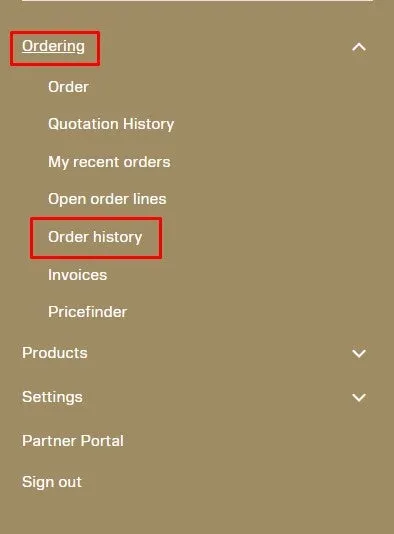
You can filter orders by various criteria, such as:
- Order date
- Order number
- Order status
All orders that match your filter criteria will be displayed. To view the details of a specific order, simply expand the order to show all the products in it.
Each order line contains shipping information for the ordered product, including the ship date, order line status, tracking link, invoice link, and more.
In addition to following up on your order, you can also use your previous orders to:
- Add an order or order line to your cart for repeat ordering
- Save the items in an order to your personal favorites (called Saved Lists) for future reference and other purposes.
How do I find spare parts?
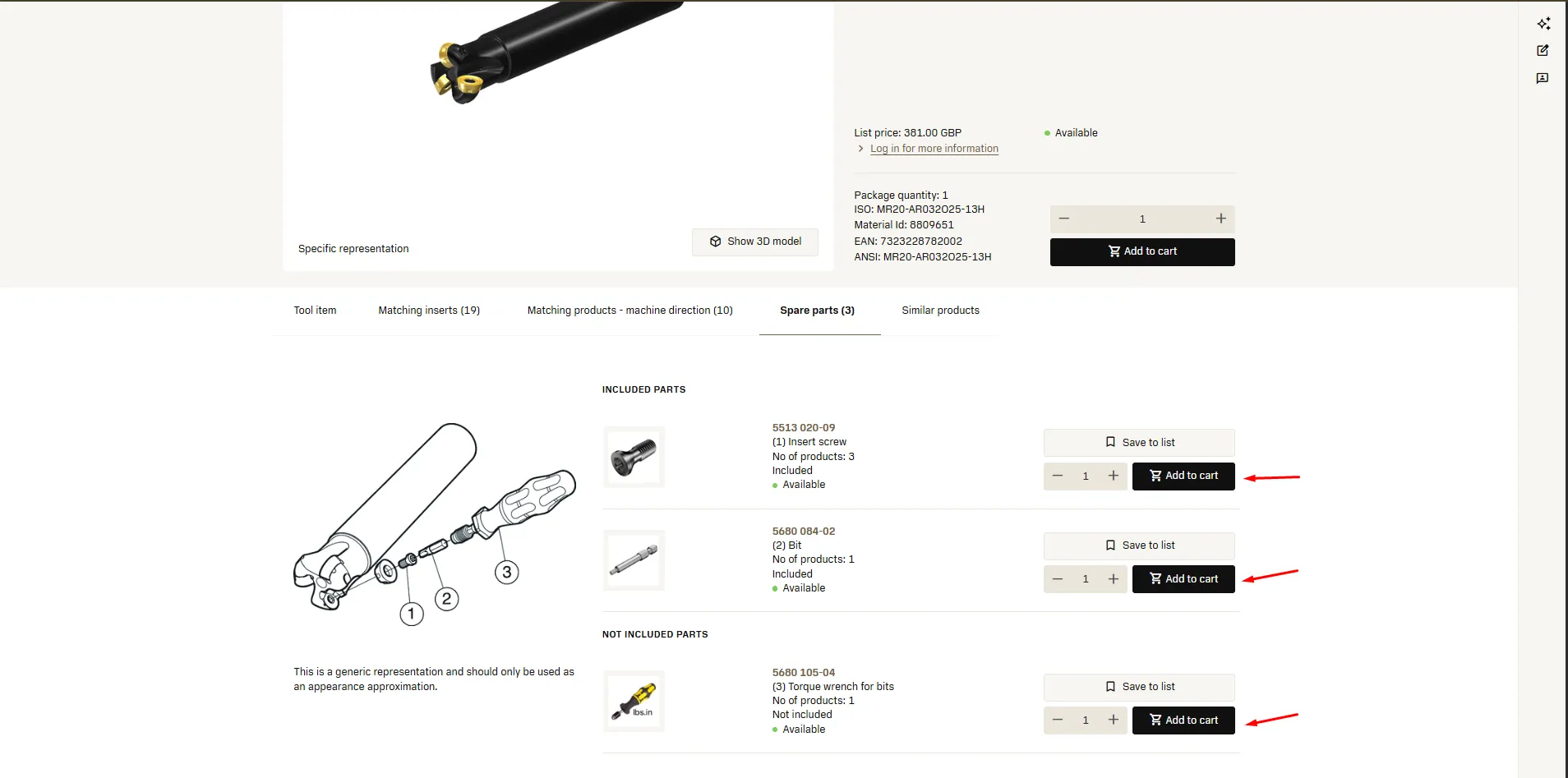
Spare parts are listed on each product's page.
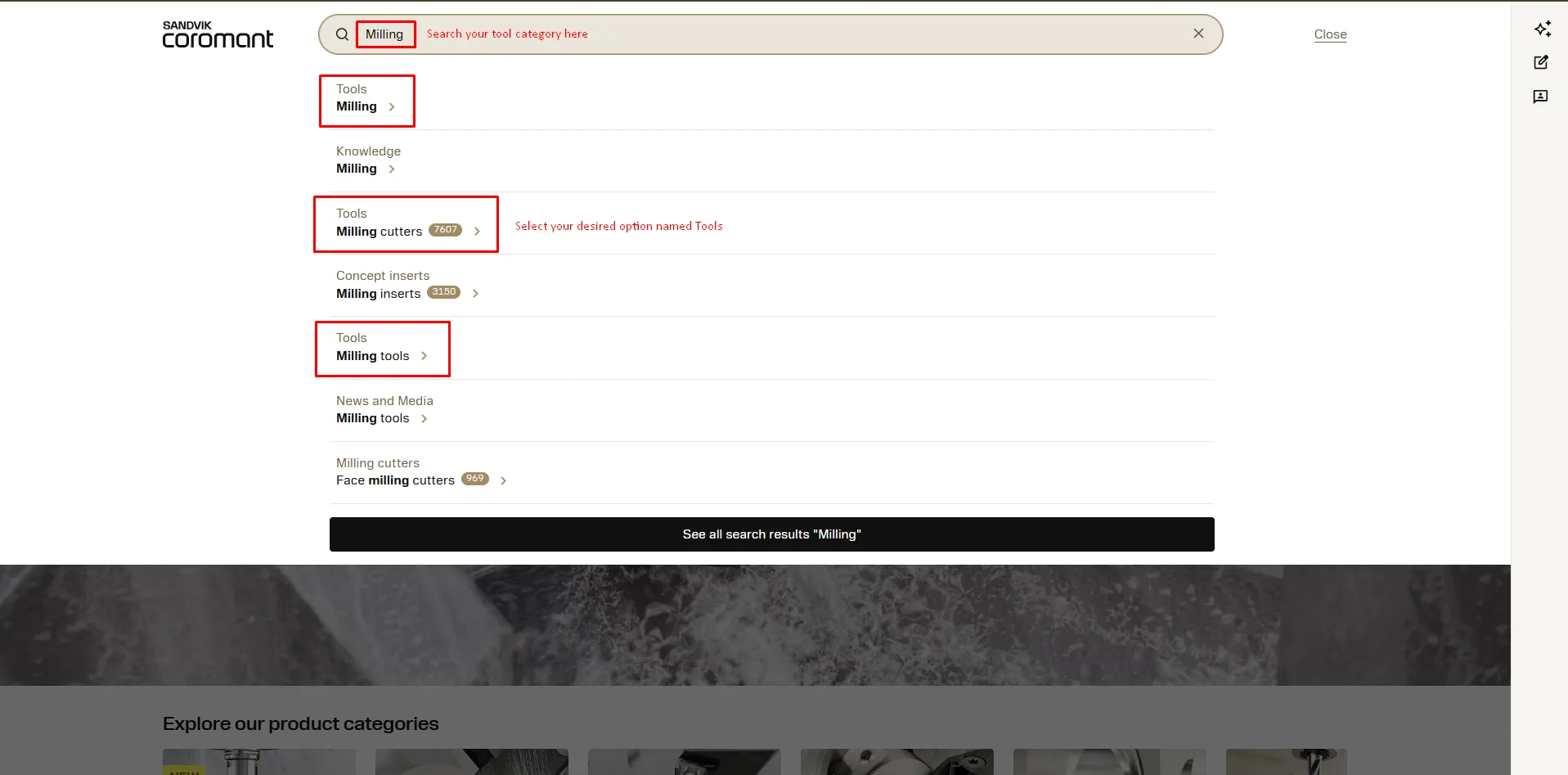
1. Find your product. Search by product name or ordering code, or browse the product assortment.
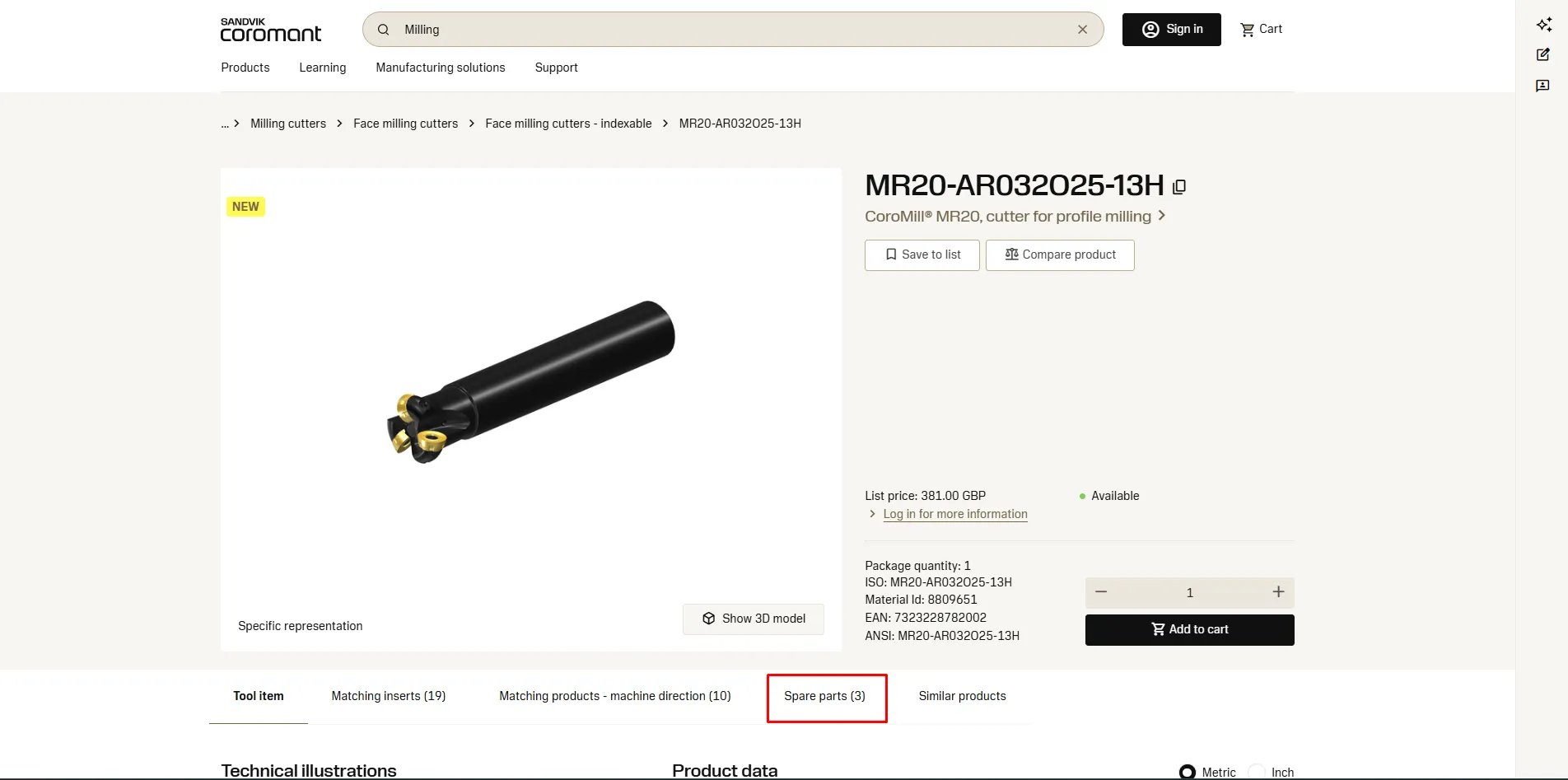
2. Open the “Spare parts” tab on the product page to see the matching spare parts.
3. Add the spare parts you need to your cart.
4. If a product page has no Spare parts tab, there are no spare parts for that product.
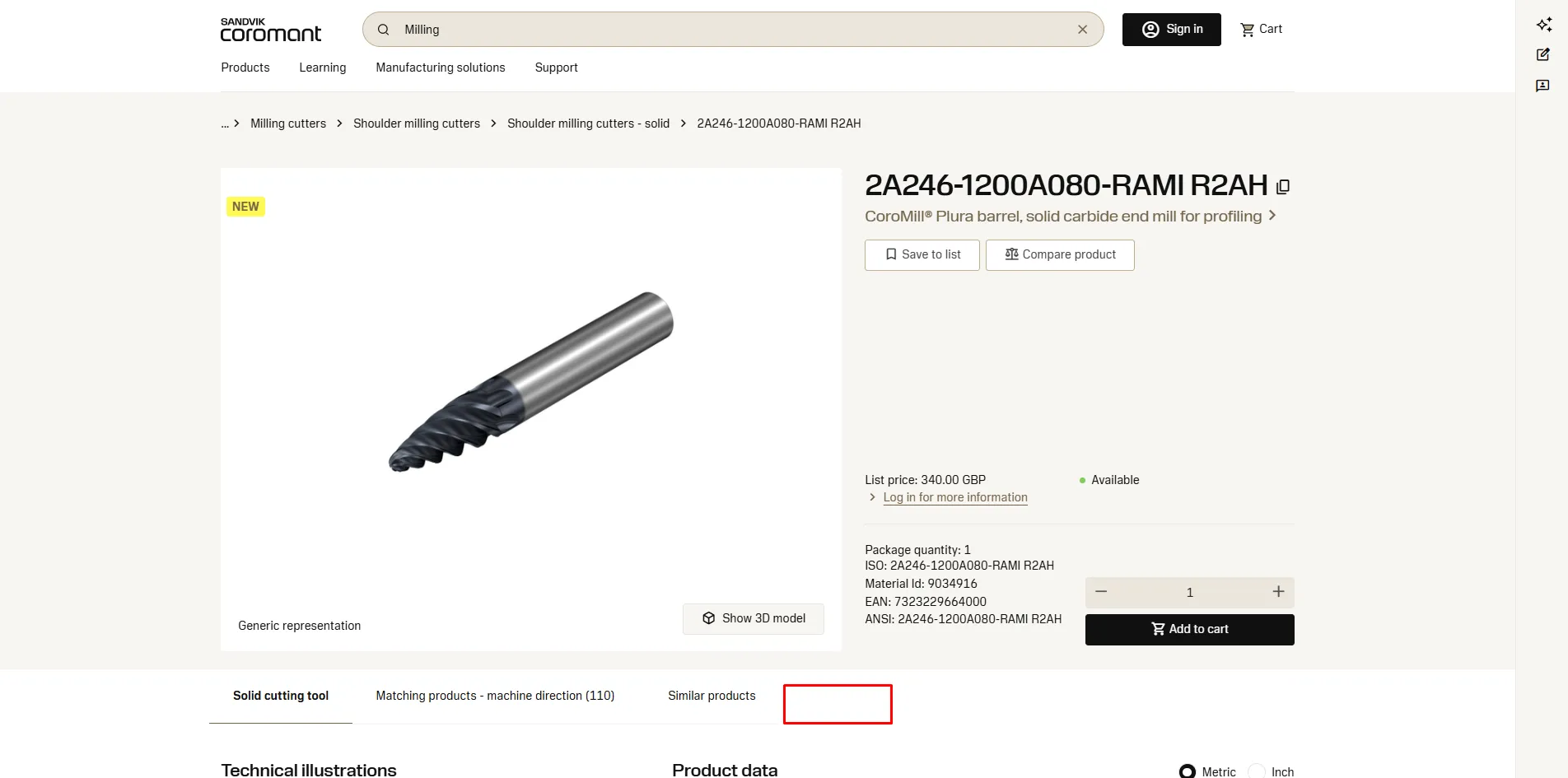
Not all products have spare parts. Inserts, for example, have none. If a product page has no Spare parts tab, there are no spare parts for that product.
